

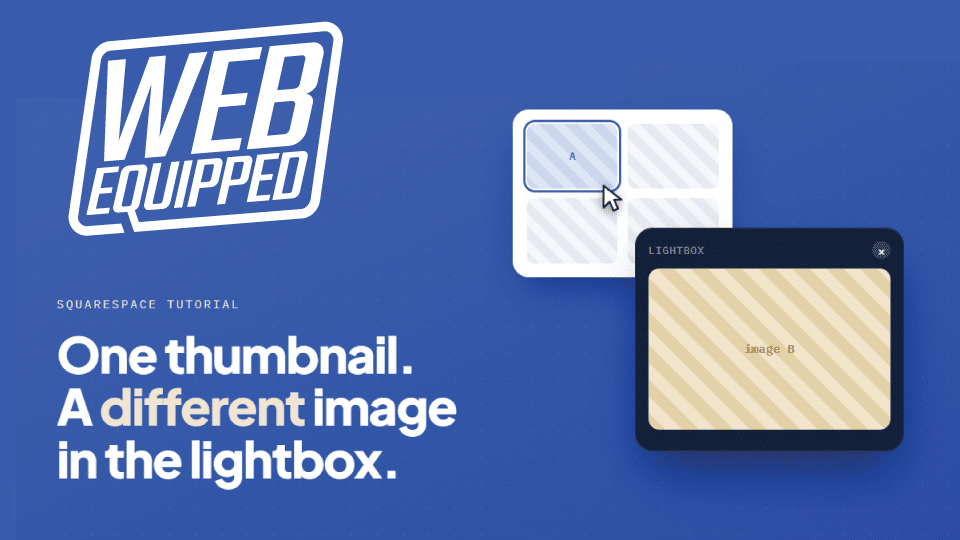
How to Make a Thumbnail Image Open a Different Image
in a Squarespace Lightbox
Yes, you can make the Squarespace lightbox display a different image than the thumbnail. Squarespace does not support this out of the box. The native lightbox only shows the same image you clicked.
This tutorial walks through a self-contained solution that works on any tier of Squarespace plan. It uses a single Code Block and free custom code created by Web Equipped.
How This Method Works
One of the issues we ran into with a client was a Personal tier subscription, which does not allow Code Injection. The workaround is to drop the code into a Code Block placed directly on the page with the images.
You display one image as the thumbnail. You attach a link that points to a different image. A small script intercepts the click and opens the linked image in a lightbox instead of navigating to it. The visitor sees thumbnail A on the page and full image B in the popup.
What You Need
You need a Squarespace site on any plan, including Personal. You need the default Image block. You do not need a gallery, a source page, or the Business plan. You do not need Code Injection, which is locked on Personal plans.
Step 1: Get a Direct URL for Each Target Image
The script needs a direct file URL for every image you want to show in the lightbox. The URL has to end in an image extension like .jpg, .png, or .webp. Squarespace makes this easy by offering a file as a link option.
Upload each target image to the Asset Library, or drop it into a temporary Image block.
Keep these URLs handy. You will paste one into each thumbnail, or select directly from the file you uploaded.
Step 2: Add Image A (the Thumbnail)
Add your Image blocks to the page and arrange them in whatever grid or layout you want. Each block displays its own thumbnail image. This works in both Fluid Engine and Classic Sections.
For each thumbnail, turn the native lightbox toggle OFF. Leaving it on will conflict with the script.
Step 3: Attach the Target Image Link
Select an Image block. Click Attach Link. Paste the direct URL of the different image you want the lightbox to show. Repeat for every thumbnail, pointing each one at its own target image.
The script keys off the link. It only converts links that end in an image extension, so anything else on your page is left alone.
Step 4: Add the Code Block
Add a Code Block to the bottom of the same page that holds your grid. Leave the type set to HTML. Paste this in:
<link href="https://cdn.jsdelivr.net/npm/glightbox/dist/css/glightbox.min.css" rel="stylesheet" />
<script src="https://cdn.jsdelivr.net/npm/glightbox/dist/js/glightbox.min.js"></script>

<script>
(function () {
  function init() {
    var triggers = document.querySelectorAll('.sqs-block-image a[href]');
    triggers.forEach(function (a) {
      var href = a.getAttribute('href') || '';
      if (/\.(jpe?g|png|webp|gif|avif)(\?|#|$)/i.test(href)) {
        a.classList.add('glightbox');
      }
    });
    GLightbox({ selector: '.glightbox', touchNavigation: true, loop: true });
  }
  if (document.readyState === 'loading') {
    document.addEventListener('DOMContentLoaded', init);
  } else {
    init();
  }
})();
</script>
Save the block. The Code Block only affects the page it sits on. If you need this on other pages, add the same block to each one.
Insert this as HTML only. It will not work in any other code format. If you are using a Code Block rather than Code Injection, place it at the bottom of the page so it stays out of the way.
Step 5: Preview on the Live Site
Squarespace disables embedded scripts while you are logged in and editing. You will see a “Script Disabled” label and an “Embedded Scripts” notice in the editor. This is normal. The script is not broken.
To test it, click Preview in Safe Mode, or open the published page in an incognito window while logged out. The lightbox runs there.
Optional: Isolate Each Thumbnail
By default, every thumbnail joins one shared lightbox set, so visitors can use the arrows to page through all of them. If you want each thumbnail to open only its own image with no next or previous arrows, add this line inside the forEach, right after the classList.add line:
a.setAttribute('data-gallery', 'solo-' + Math.random());That gives each thumbnail a unique group so the images stay separate.
Custom Code or the Plugin
The custom code is free and self-contained. You maintain it yourself. It loads a third-party library, so a Squarespace platform update could break it, and Squarespace will not support it.
A paid plugin like Lightbox Studio gives you a no-code editor interface, video and PDF lightbox support, and a team that handles Squarespace updates for you. For a single grid on one site, the custom code is enough. For repeated deployment across many client sites, a plugin can save enough time to justify the cost.
Common Issues and Help
Check that each attached link actually ends in an image extension. The script ignores links that do not.
That is the default shared behavior. Add the isolation line from the optional step above.
That is the embedded scripts notice. It only appears while editing. Preview on the live site to confirm the block works.
Feel free to reach out to us if you need help integrating this on your site or for general web development and web design assistance.